


Hello World -- Your First Program
Sonu Yadav
To create and run a console application
- Start Visual Studio 2012/2015/2017.
- On the menu bar, choose File, New, Project.
The New Project dialog box opens.
- Expand Installed, expand Templates, expand Visual C#, and then choose Console Application.
- In the Name box, specify a name for your project, and then choose the OK button.
The new project appears in Solution Explorer.
- If Program.cs isn't open in the Code Editor, open the shortcut menu for Program.cs in Solution Explorer, and then choose View Code.
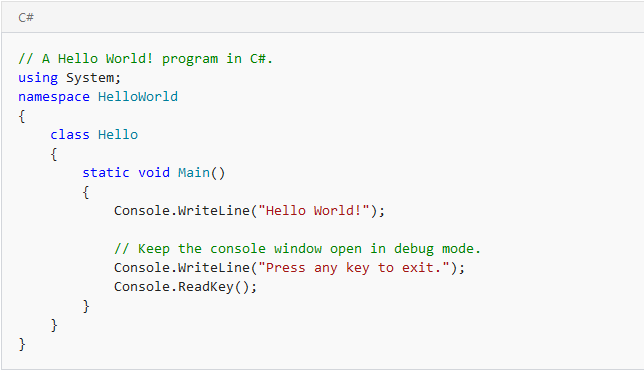
- Replace the contents of Program.cs with the following code.

7. Choose the F5 key to run the project. A Command Prompt window appears that contains the line
Hello World!
Next, the important parts of this program are examined.Comments
The first line contains a comment. The characters//convert the rest of the line to a comment.

You can also comment out a block of text by enclosing it between the/*and*/characters. This is shown in the following example.

Main Method
A C# console application must contain aMainmethod, in which control starts and ends. TheMainmethod is where you create objects and execute other methods.TheMainmethod is a static method that resides inside a class or a struct. In the previous "Hello World!" example, it resides in a class namedHello. You can declare theMainmethod in one of the following ways:
- It can return
void.


The parameter of theMainmethod,args, is astringarray that contains the command-line arguments used to invoke the program. Unlike in C++, the array does not include the name of the executable (exe) file.
For more information about how to use command-line arguments, see the examples in Main() and Command-Line Arguments and How to: Create and Use Assemblies Using the Command Line.The call to ReadKey at the end of theMainmethod prevents the console window from closing before you have a chance to read the output when you run your program in debug mode, by pressing F5.Input and Output
C# programs generally use the input/output services provided by the run-time library of the .NET Framework. The statementSystem.Console.WriteLine("Hello World!");uses the WriteLine method. This is one of the output methods of the Console class in the run-time library. It displays its string parameter on the standard output stream followed by a new line. Other Console methods are available for different input and output operations. If you include theusing System;directive at the beginning of the program, you can directly use the System classes and methods without fully qualifying them. For example, you can callConsole.WriteLineinstead ofSystem.Console.WriteLine:

For more information about input/output methods, see System.IO.Command-Line Compilation and Execution
You can compile the "Hello World!" program by using the command line instead of the Visual Studio Integrated Development Environment (IDE).To compile and run from a command prompt
- It can return
Paste the code from the preceding procedure into any text editor, and then save the file as a text file. Name the file
Perform one of the following steps to open a command-prompt window:
Hello.cs. C# source code files use the extension .cs. Perform one of the following steps to open a command-prompt window:
In Windows 10, on the Start menu, search for
Developer Command Prompt, and then tap or choose Developer Command Prompt for VS 2017.
A Developer Command Prompt window appears.
In Windows 7, open the Start menu, expand the folder for the current version of Visual Studio, open the shortcut menu for Visual Studio Tools, and then choose Developer Command Prompt for VS 2017.
A Developer Command Prompt window appears.
Enable command-line builds from a standard Command Prompt window.
In the command-prompt window, navigate to the folder that contains your
Hello.cs file. Enter the following command to compile
Hello.cs. csc Hello.csIf your program has no compilation errors, an executable file that is named
Hello.exe is created. In the command-prompt window, enter the following command to run the program:
Hello





1 Comments
thanks for further details contact me on facebook
ReplyDeleteThanks for Commenting on our blogs, we will revert back with answer of your query.
EmojiThanks & Regards
Sonu Yadav